
Charts & analysis
Organise your view with multiple timeframes, indicators and drawing tools.
IMTRADER × METATRADER 5
Your perspective deserves powerful tools.
YOUR CONNECTED WORKSPACE
imTrader uses MetaTrader 5. Bring charts, analysis tools and order management into a familiar workspace on desktop and mobile.
Download MT5 ↓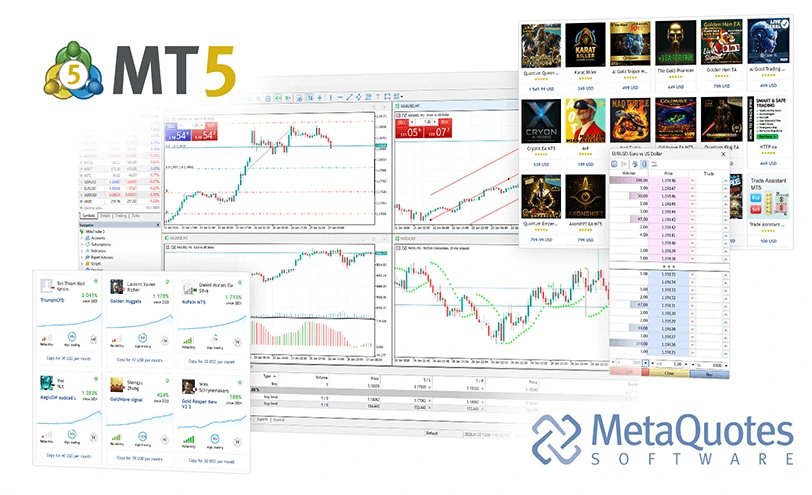
Official MetaQuotes product illustration · Prices shown are for demonstration
Organise your view with multiple timeframes, indicators and drawing tools.
View instruments, manage orders and review history. Availability depends on account settings.
Desktop support for MQL5 and EAs. Automated strategies do not guarantee profit.
Evaluate strategies with historical data. Backtests do not guarantee future performance.
DOWNLOAD METATRADER 5
These are official MetaQuotes generic client links. After installation, connect using the account and exact server name provided by imTrader.
Desktop workspace
Review official installation and compatibility requirements. App store availability varies by region.
For your Mac
Review official installation and compatibility requirements. App store availability varies by region.
App Store
Review official installation and compatibility requirements. App store availability varies by region.
Google Play
Review official installation and compatibility requirements. App store availability varies by region.
Mobile clients do not run desktop EAs. Installing a client does not open an account. MetaTrader 5 is a MetaQuotes product; client capabilities do not guarantee that every feature is available on an imTrader account.
Official installation and compatibility guide ↗GET CONNECTED
Obtain the trading account and exact server name from the portal. Portal and MT5 credentials may differ.
Install your client and search for the complete server name, rather than guessing from the brand.
After connecting, check account details, available instruments and trading rules.
GLOBAL PERSPECTIVE. YOUR NEXT MOVE.
Get to know the markets, the tools and the details that matter.